How to Use HT Blocker
Follow these steps to set up, configure, and get the most out of HT Blocker
Getting Started
Rules
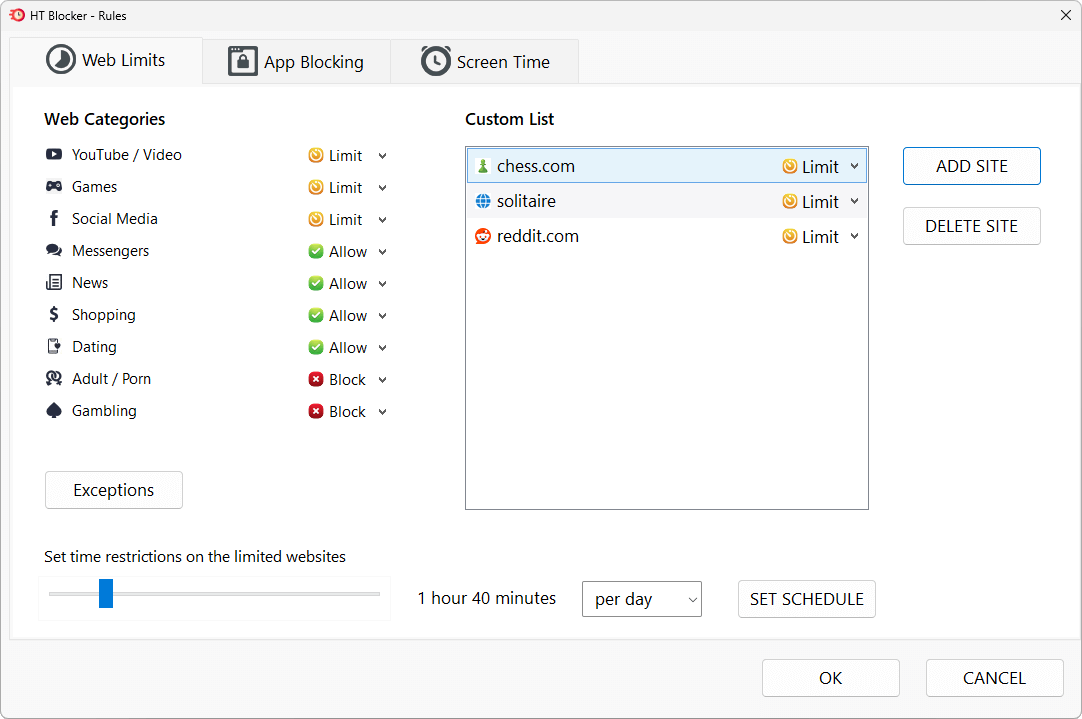
- Go to the Web Limits tab to control access to websites.
- Select entire categories like Social Media or Games
- Or add custom sites like
chess.comorreddit.com - Choose a restriction: Limit or Block
- Set daily or weekly limits using the slider and time selector
- Click Set Schedule to control access by hours of the day or days of the week.
Block: Access is completely denied at all times.
Limit: Access time is capped per day. The daily quota is shared across all items marked as Limit.
Click to enlarge
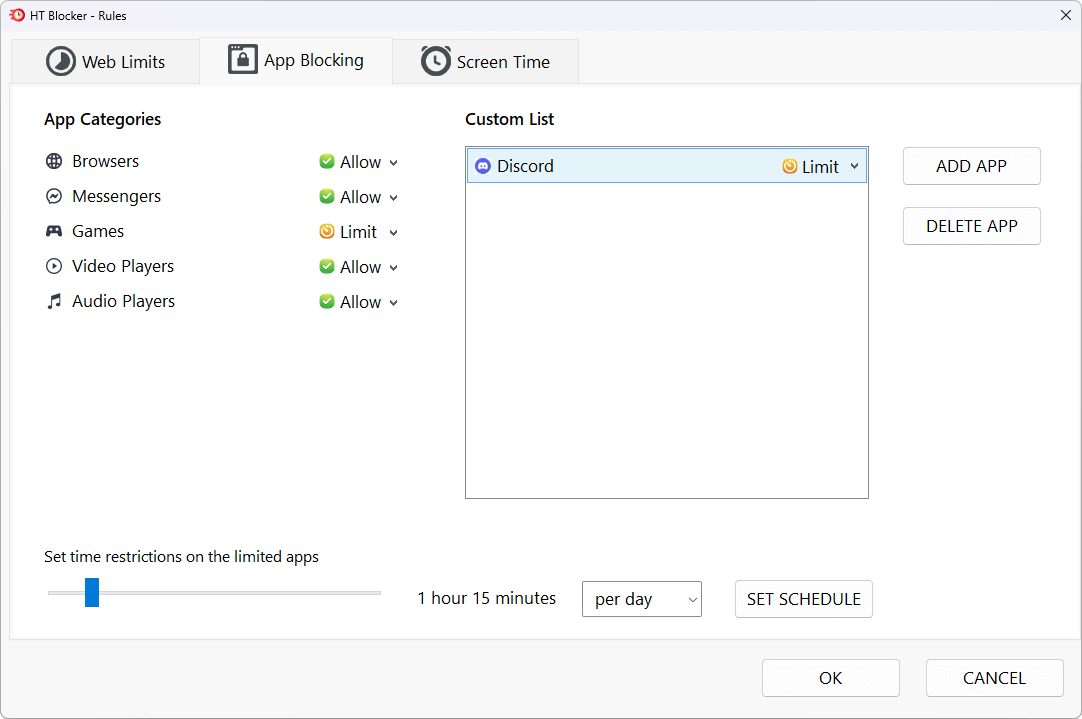
- Switch to the App Blocking tab to manage your desktop apps.
- Control categories like Games, Messengers, Video Players.
- Or add specific apps like
Discordto your custom list. - Choose a restriction: Limit or Block.
- Set time limits or apply a strict schedule.
Perfect for stopping time-wasting apps during work or study time.
Block: Access is completely denied at all times.
Limit: Access time is capped per day. The daily quota is shared across all items marked as Limit.
Click to enlarge
To avoid overuse, you can set daily or hourly limits. Choose Limit when creating or editing a rule, and set a time allowance, such as 30 minutes per day.

Click to enlarge
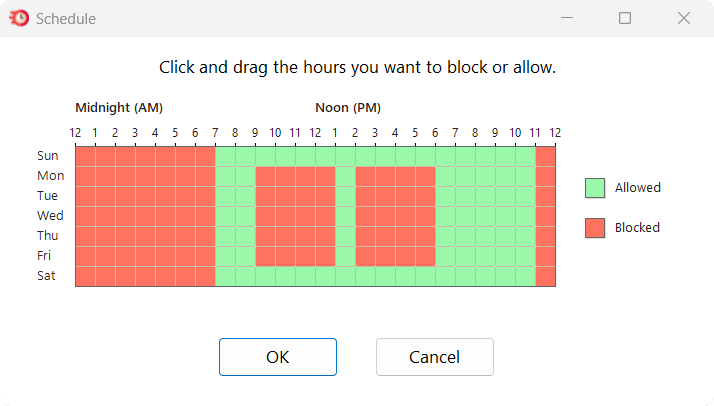
Use the weekly grid to define when websites or apps are allowed or blocked. This is great for school hours, family time, or digital detoxes.
Click to enlarge
For stronger discipline, use Hard Mode. Once activated, rules cannot be disabled or modified until the scheduled period ends.
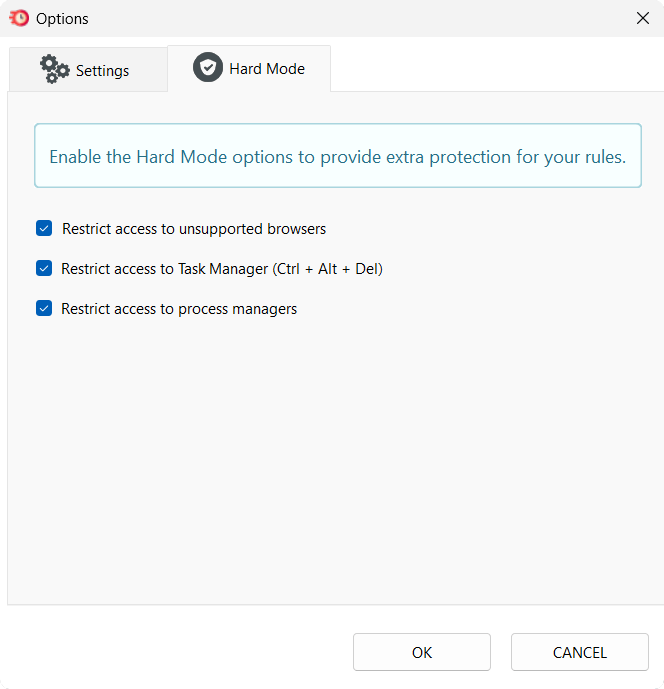
Click to enlarge
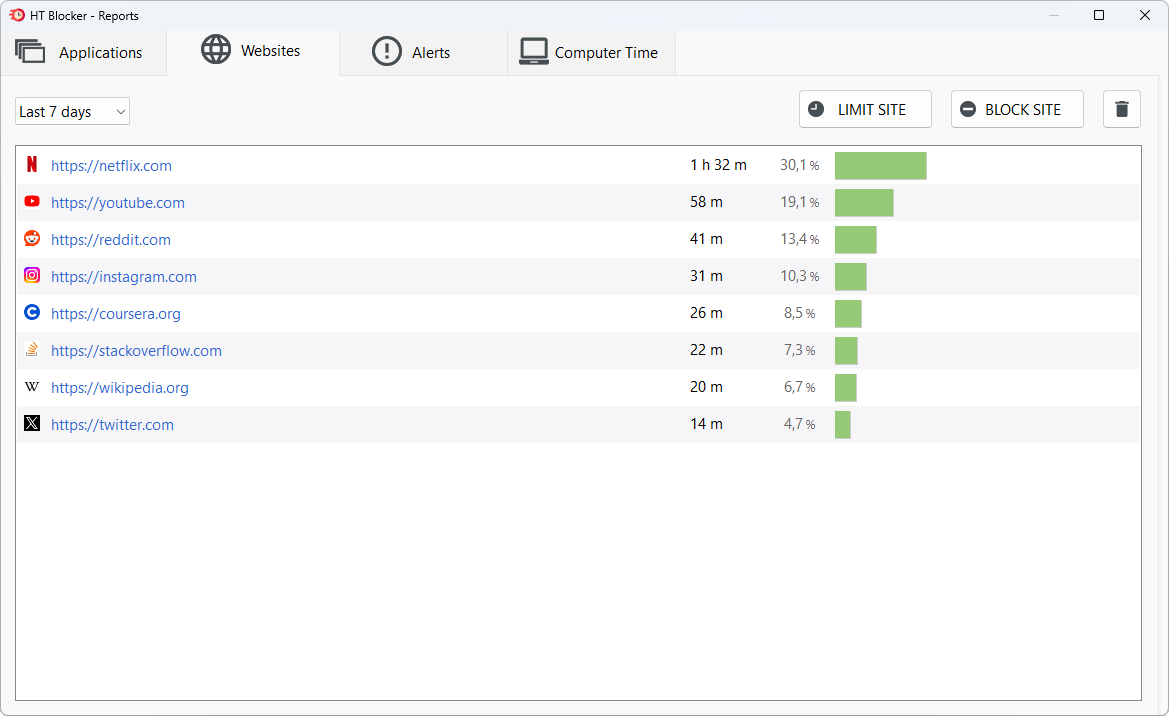
In the Reports tab, view insights into your activity:
- Most used websites and apps
- Total time spent
- Blocked attempts
Use this data to stay aware and adjust your rules for maximum focus.
Click to enlarge
Other
Need Deep Focus for Studying?
You’re getting ready for an exam, but YouTube and Reddit are calling. With HT Blocker, you can block these distractions for just 1 hour, so you can study in peace. Set a Block rule and start the timer — no willpower needed.
Want to Stay Off Social Media at Work?
Need to stay focused but don’t want to quit cold turkey? Limit your time on Facebook or Instagram to 1 hour per workday with a Limit rule from 9 AM to 6 PM. Stay productive without cutting off everything.
Tired of Getting Pulled Into Adult Sites?
If you’re trying to break free from unhelpful habits, HT Blocker helps you block adult content and related keywords completely. Turn on Block mode — and add Hard Mode for serious commitment.
Just Curious Where Your Time Goes?
You don’t have to block anything yet. Use HT Blocker to track how much time you spend on websites and apps. Then check the Reports tab to see what’s stealing your time — and decide what to fix later.
- Start with a few essential rules — don’t overcomplicate on day one
- Use a combination of time limits and schedules for better control
- Adjust your rules weekly based on reports and real habits
If blocking doesn’t work, check the following and do the following:
- Restart your computer — something may be wrong with the app, browser, or Windows system.
- Open the app and check that the main dashboard shows a green indicator and the text “HT Blocker is active.”
- The URLs in your lists match the actual website URLs. We recommend adding bare URLs without “www,” “http,” “https,” or trailing dashes, as people sometimes enter them incorrectly. Using bare URLs helps prevent errors.
- Open General Settings and make sure the Launch the program when Windows starts checkbox is selected.
- Make sure you are using a supported browser.
- Please don’t confuse websites and apps — apps are separate installed (.exe) programs, while websites are opened through a browser. Blocking an app in the Website tab, or a website in the App tab, will not work. Make sure you use the correct tab for each type.
- Need help? Contact our support — we’re happy to help!