 How to Block Threads on a Computer or Laptop (Windows)
Are you a parent trying to keep a child focused, or an employer keeping a team on task? Threads is one more feed that's easy to open "for a minute" and hard to close — and its own in-app settings are easy to switch off. To block Threads for good, you have to block it at the computer level, not from inside the app.
Block Threads on Windows: Choose Your Version
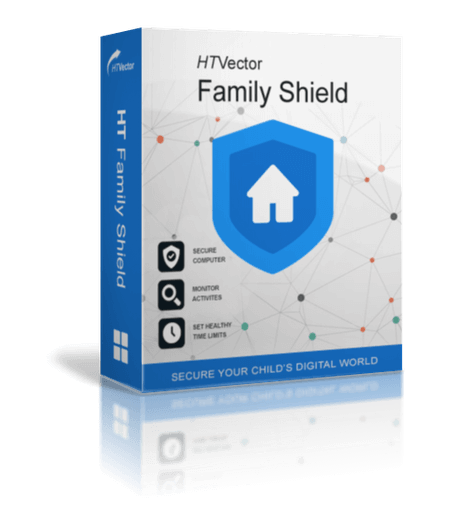
Home Use
- Block or limit Threads, TikTok, Instagram & more
- Smart screen time limits for kids
- Content filtering & keyword blocking
- Block inappropriate websites
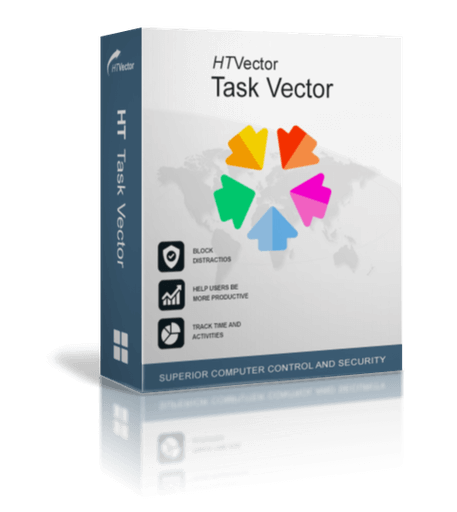
Business Use
- Keep Threads and social media off work hours
- Improve team focus & productivity
- Advanced time tracking & usage reports
- Remote management for every computer
* for Windows OS only
What the App Can Do
Block
Any website or app, or a whole category like Social Media, in one click
Limit
Time spent on any site or app per hour, day, or week
Schedule
Allow access during breaks, after school, or outside business hours
Track
Time spent on every app and website in use
How to Block Threads on Computer (Windows): Step-by-Step
- Download and install the appropriate software on your computer(s) or laptop(s).
Download HT Family Shield for Home Use
Download HT Task Vector for Business Use - Create an account for remote control and log in to your online dashboard:
https://family.ht-vector.com for HT Family Shield
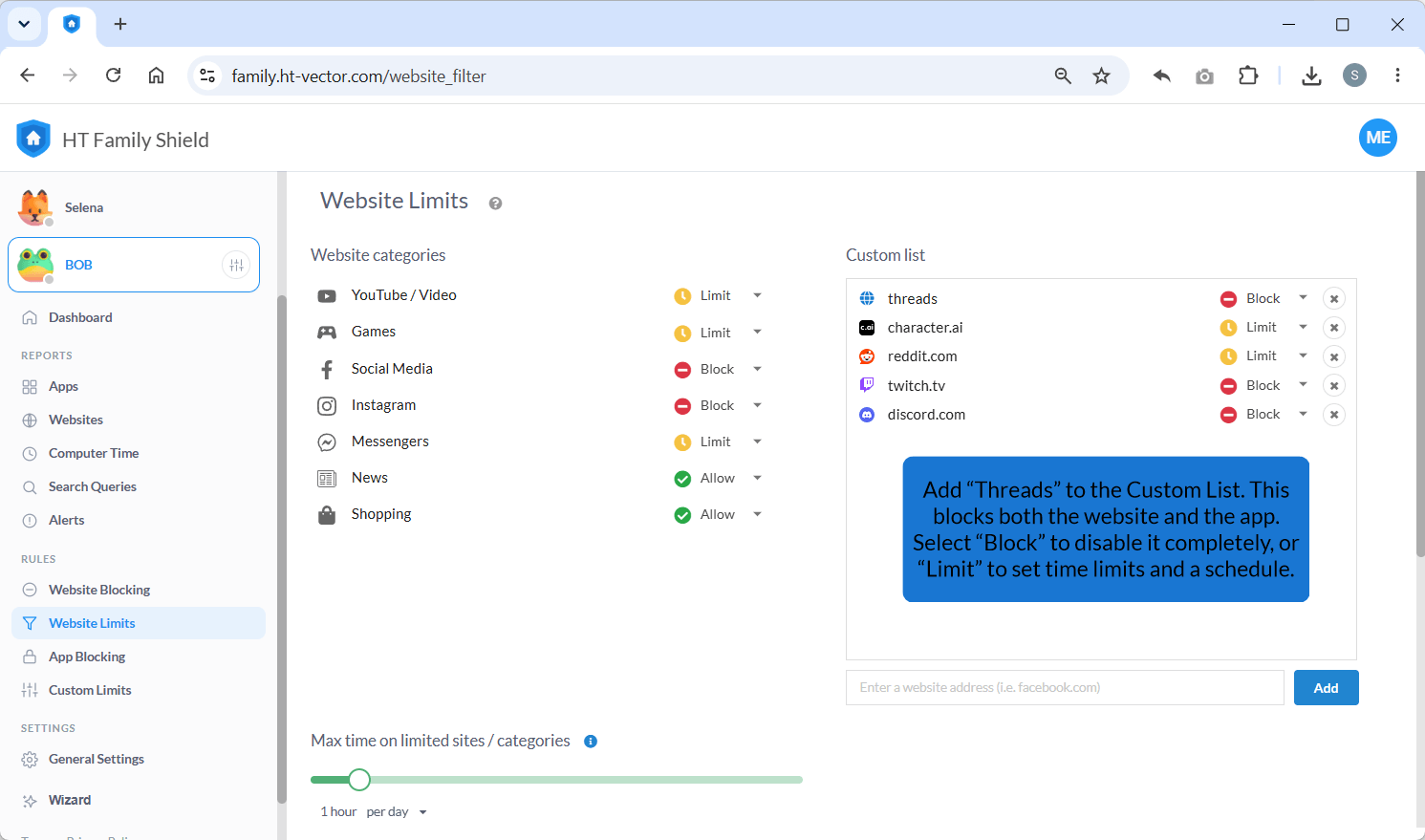
https://manage.ht-vector.com for HT Task Vector - Navigate to Rules > Website Limits.
- Add the keyword Threads to the Custom List — this one keyword blocks both the website and the app.
- Select Block to keep Threads permanently unavailable, or Limit and set a time cap and schedule for it.
Click to enlarge
See Threads Activity in Real-Time Reports
Blocking isn't the only option. Your dashboard also shows everything happening on the computer as it happens — not just Threads, but every site and app someone visits, plus anything flagged as a risk.
- Log in to your dashboard (family.ht-vector.com or manage.ht-vector.com) and open Reports > Websites or Alerts.
- See every site and app used, updated in real time, with anything flagged as risky highlighted.
- Spot Threads (or anything else) in the list? Click the options icon next to it and choose Block or Limit right from the report — no need to go back into Rules.

Click to enlarge
More Than a Threads Blocker
HT Family Shield and HT Task Vector give you a full toolkit for a safer, more focused computer — Threads is just one of the things you can control.
Web Content Filtering
Content filtering, block & allow lists, and keyword blocking that work across every browser.
Smart Time Management
Screen time limits, per-site and per-app time rules, and daily schedules.
App & Game Control
Block or limit distracting apps and games, not only websites.
Detailed Activity Reports
Visited sites, search history, app usage, and real-time alerts in your dashboard.
Remote Management
Manage every computer from your own protected online dashboard, from anywhere.
Tamper-Proof Protection
Enforced at the computer level — it holds in private mode and behind a VPN.
With this Threads blocker, you get a formidable tool for keeping social media distractions in check — plus a full suite of monitoring features to track time spent on every app and website. It's the right solution for a healthier balance between screen time and everything else.