Block Keywords — HT Family Shield Guide
Blocking keywords is a simple and effective way for parents to guide their child’s online experience. Instead of blocking countless websites one by one, a single keyword can automatically restrict access to large groups of related pages and search results.
-
🌐 Wide coverage with minimal setup
One blocked keyword can prevent access to hundreds or even thousands of related websites and pages. -
🔍 Protection across multiple platforms, including search results
Keyword filtering applies to search results, links, and content across the system—not just known domains. -
🔄 Keeps up with new content
As new websites and pages appear, they are automatically filtered if they match blocked keywords.
Why Use HT Family Shield for Keyword Blocking
HT Family Shield is a comprehensive parental control solution that protects children across multiple browsers and apps. That allows:
-
🌍 Blocks keywords across all popular browsers
Filtering applies to Chrome, Edge, Firefox, and other browsers. -
🔒 Harder to bypass than browser-based tools
Because blocking works at the system level, children cannot simply switch browsers or use private mode to avoid restrictions. -
⏱️ Time limits for keywords
Parents can assign a “Limit” status to specific keywords, setting schedules or daily time allowances for apps or sites instead of blocking them completely. -
👀 Activity monitoring and alerts
HT Family Shield shows all visited websites, providing alerts and reports on restricted activity for better oversight. -
🗂️ Pre-built categories with thousands of keywords
Many sensitive keywords are already covered through built-in categories, reducing the need for manual setup.
How to Block Keywords
1. Quick start
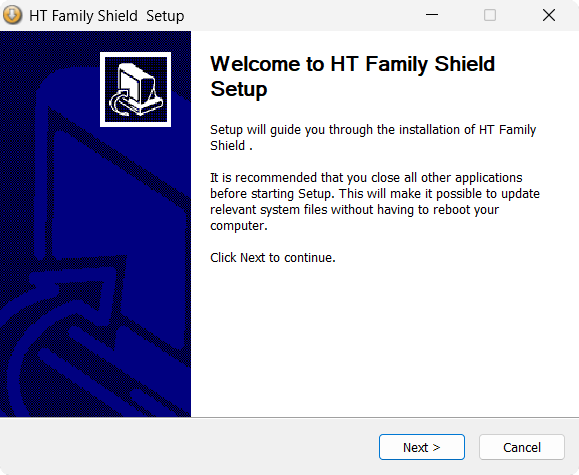
- Install HT Family Shield and create an account.
- Now all can be done remotelty. On your parental online dashbord opened in a browser https://family.ht-vector.com
Click to enlarge
2. Block categories
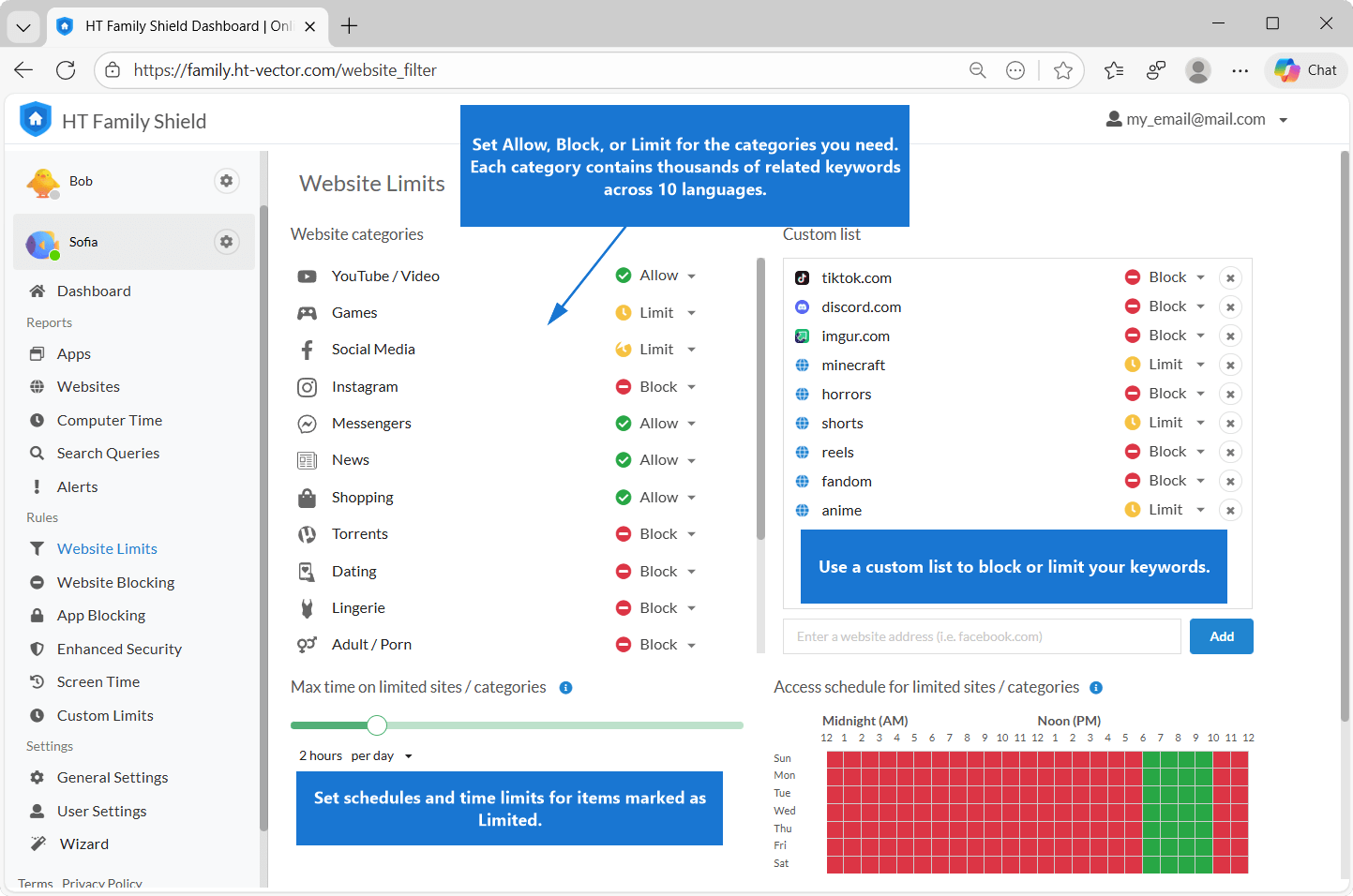
- Open your online dashboard and go to Rules → Website Limits.
- Set Allow, Block, or Limit for the categories you need. Each category contains thousands of related keywords across 10 languages, as well as matching websites.
-
Allow = no restrictions.
Block = access fully denied.
Limit = access controlled by schedules and daily or hourly time limits.
Click to enlarge
3. Limit mode — schedule + time limits
Choose Limit when you prefer guided access, not a hard block:
- Set a schedule for Limited items.(e.g., school days 6–9 PM; weekends 11 AM–10 PM).
- Apply time caps like 5 minutes per hour or 2 hour per day (covers all items you put into Limit).
4. Custom list
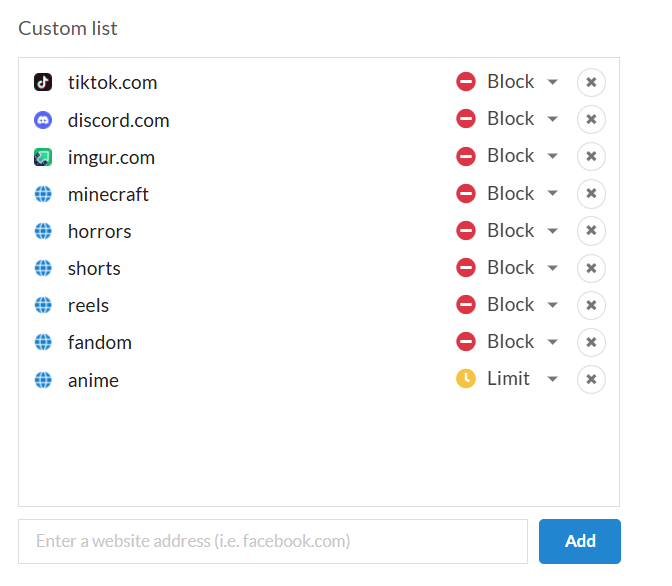
The Custom List gives you precise control over specific websites or phrases that may not be fully covered by categories.
- Open your online dashboard and go to Rules → Website Limits.
- Add your keywords or URLs to the Custom List and select the desired status for each item (Allow, Block, or Limit).
Click to enlarge
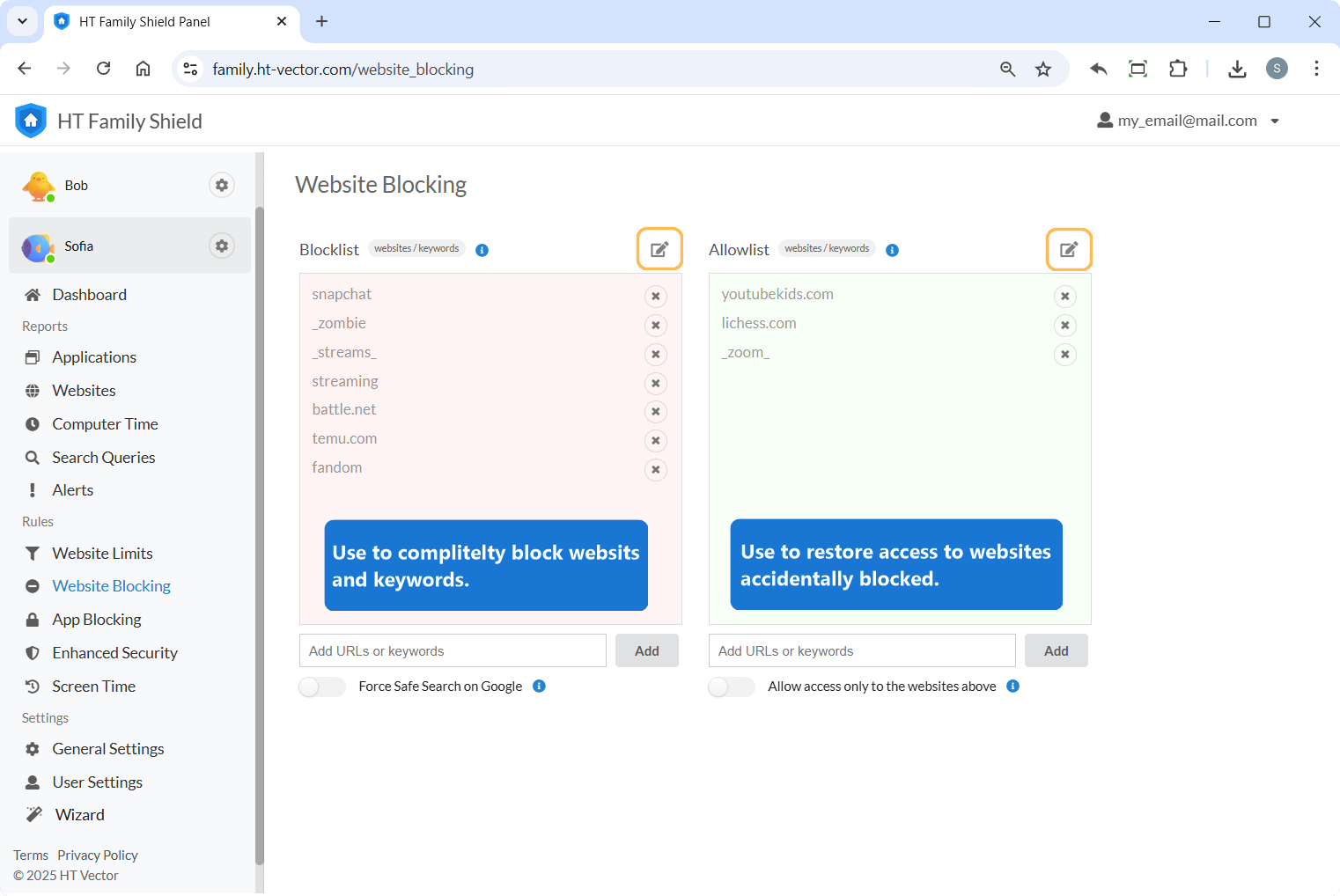
Use the Allowlist to prevent overblocking
Click to enlarge
The Allowlist ensures that important and trusted content—such as educational resources, work-related websites, competitions, and language-learning platforms—always remains accessible. Allowlist rules override other restrictions and help reduce false positives when keyword blocking is enabled.
- Use clear, specific phrases instead of overly broad single words.
- Add this trusted domains and terms to the Allowlist to avoid accidental blocking.
FAQ and Common Concerns
- Q: Can this be bypassed with a VPN?
A: VPNs can conceal destinations. HT Family Shield helps by applying category and keyword rules regardless of the browser. For stricter homes or schools, pair it with router-level VPN restrictions and keep Allowlist for approved study/work sites. - Q: Will this slow down the Internet?
A: Filtering is lightweight and designed to run quietly. Under normal conditions you shouldn’t notice slowdowns. - Q: Do I need to add plural forms or every variation?
A: No. Start with a clear base term or phrase. If something slips through—or blocks too much—adjust your Custom List or add the site/term to Allowlist. - Q: Which browsers and profiles are covered?
A: HT Family Shield enforces rules across Chrome, Edge, Firefox, Opera, and Brave — including Incognito/Private windows — for all protected Windows user profiles on the device. - Q: Does it work with non-English terms or leetspeak?
A: Yes. Keyword matching supports Unicode/diacritics and common leetspeak variants (e.g.,p0rn,pr0n). Add your own local terms or transliterations in Custom Lists to cover niche cases. - Q: Can I see what was blocked and why?
A: Yes. Open Dashboard → Reports → Alerts to see blocked titles/URLs with the exact reason. - Q: How do I temporarily allow for homework?
A: Use Pause to allow access for a fixed time (e.g., 15/30/60 minutes), or set a Limit window via Schedules for study time. When the window ends, protection resumes automatically. - Q: Can I combine categories and my own lists?
A: Yes. Categories give broad coverage; Custom Lists add precision; Allowlist keeps essentials open.
Conclusion: Simple to set up, easy to adjust
Keyword-based blocking lets you stop risky topics before a page loads. With HT Family Shield you can flip on Categories (Allow / Block / Limit), set schedules and time caps for grey zones, fine-tune with Custom Lists (websites + keywords), and keep essentials open via Allowlist — all while seeing what’s blocked in Alerts.
Ready to protect your home?
Last updated: January 12, 2026