Download HT Family Shield
for Windows onlyYour download will begin automatically in a few seconds. If it doesn't, click here.
Installation Steps
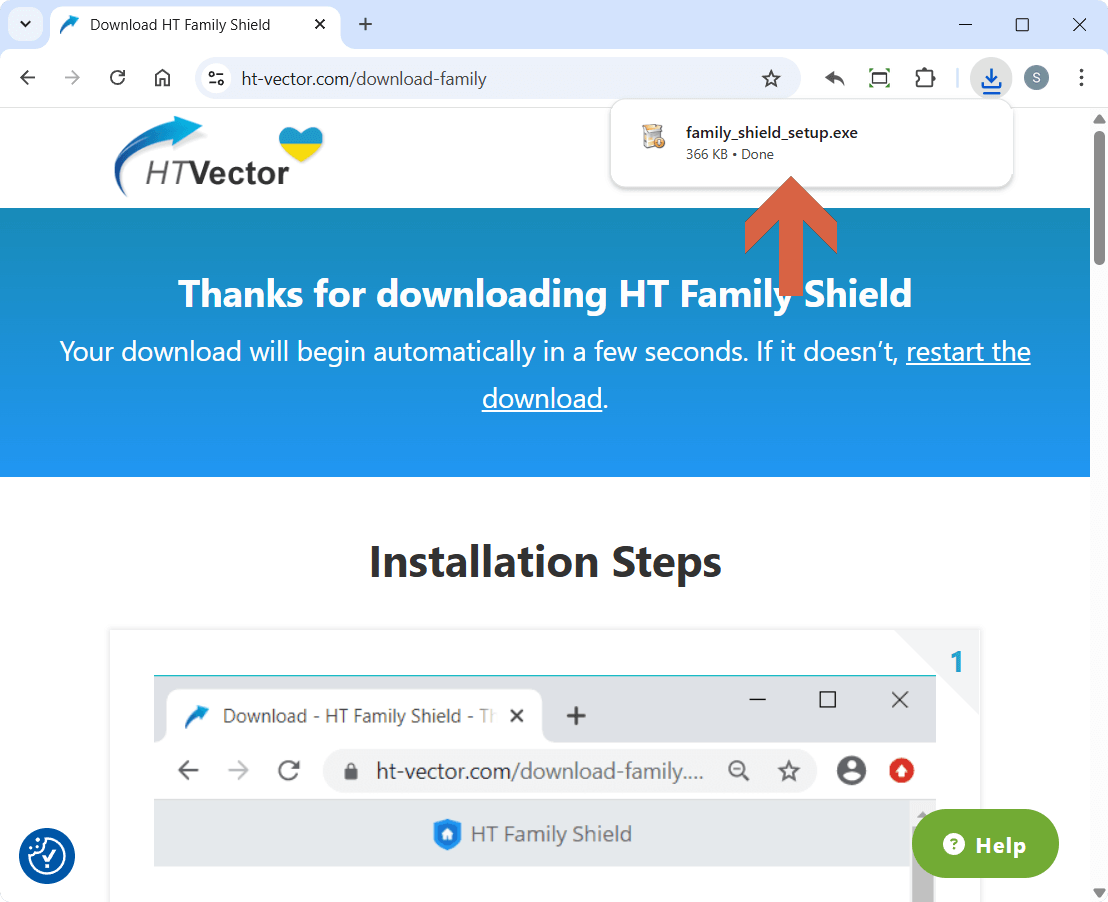
Step 1 – Download
Download family_shield_setup.exe on your children’s computer(s), then run the installer.
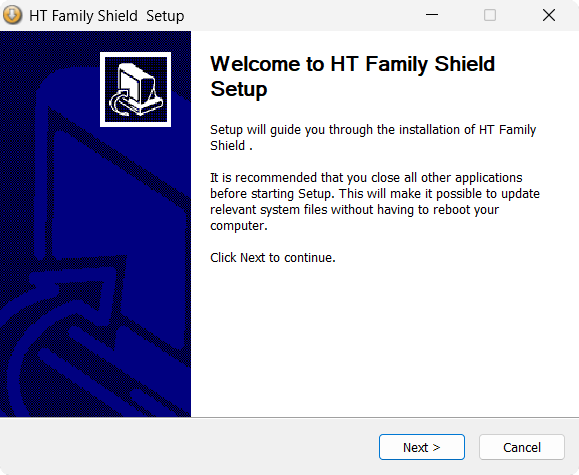
Step 2 – Install and Sign up
Install the HT Family Shield app by following the on-screen instructions, then open the app and sign up.
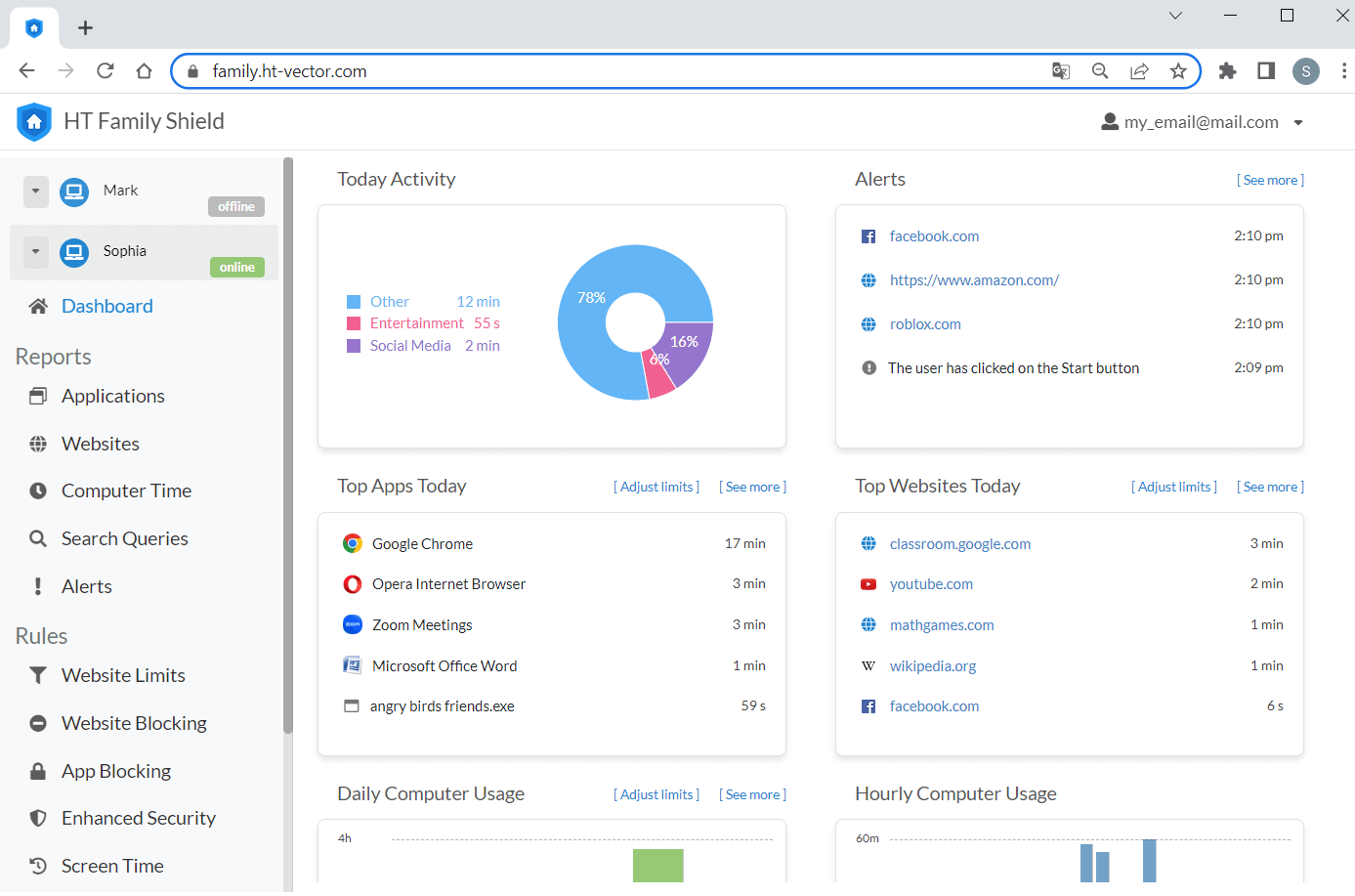
Step 3 – Open Online Dashboard
Use your parental device to visit https://family.ht-vector.com and manage your children’s computer(s) remotely.
FAQ
HT Family Shield is designed for Windows. It supports all modern versions, including Windows 11, 10, 8, and 7. You can install the agent on any laptop or desktop PC your child uses.
Yes, absolutely. Once the software is installed on the child’s PC, you don’t need to touch that computer again. You can change rules, block websites, or view activity reports from your Online Dashboard at https://family.ht-vector.com using any device (phone, tablet, or another PC) from anywhere in the world.
The key difference is how you access it:
- HT Parental Controls is a "local" solution. To change settings or see reports, you typically need to be on the same Wi-Fi network or use the child’s PC.
- HT Family Shield is a cloud-based solution. It provides an Online Dashboard. Whether you are at work or traveling, you can manage your child’s safety via the internet in real-time.
Yes. You can add specific keywords to your Blocklist. If a child searches for these words or tries to visit a site that contains them in the URL or title, the program will automatically block the content. This is a powerful way to filter out inappropriate topics across all search engines and browsers.
It supports all popular browsers, including Google Chrome, Microsoft Edge, Mozilla Firefox, Opera, Tor, and Brave. You can also choose to block "unsupported" or niche browsers entirely to ensure no loopholes are left open.
No. HT Family Shield is built to be "tamper-proof." It works effectively in Incognito/Private mode and is resistant to VPNs and proxy servers. Even if your child is tech-savvy, the filters remain active.
Yes. Beyond just blocking, you can set Max time on limited items or a Schedule. For example, you can allow Minecraft for 1 hour a day or block all social media apps after 9:00 PM to ensure a good night’s sleep.
HT Family Shield is for parental and educational use only. Explicit consent is required. By downloading, you agree to our Terms of Use and Privacy Policy