How to Block Games on Your Child’s PC
Looking for how to block games on your child’s PC? HT Parental Controls helps you do it fast: block online and installed games, set daily limits, and allow gaming only during breaks. In a few steps, you reduce distractions, stop endless screen-time arguments, and keep study time on track with clear rules and schedules.
How to Block Online Games or Browser Games
To restrict access to games your children play directly in a web browser on gaming websites (online games that don’t require downloads or installation), follow these steps:
- Download HT Parental Controls and install it on your child’s computer. This can be done from any account.
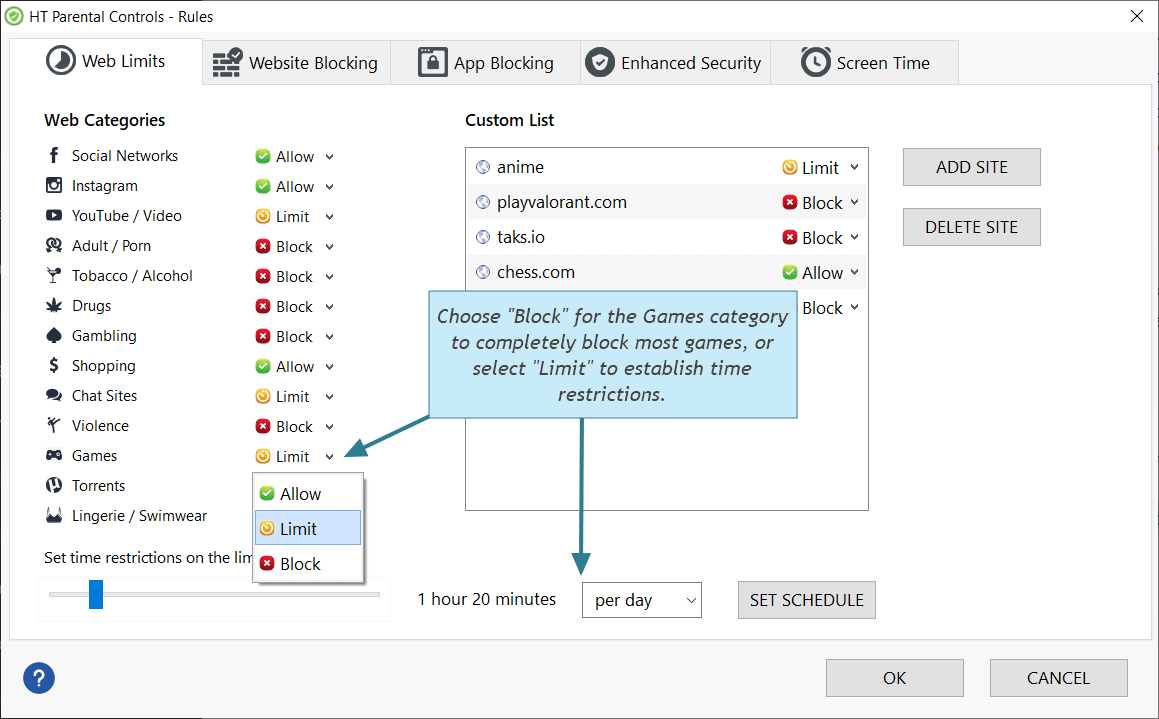
- Once installed, navigate to Rules > Website Limits.
- Select Block for the Games category. It will block most of the game websites on your child’s computer.
- Alternatively, you can select Limit and establish time restrictions and schedule at the bottom of the tab.
Click to enlarge
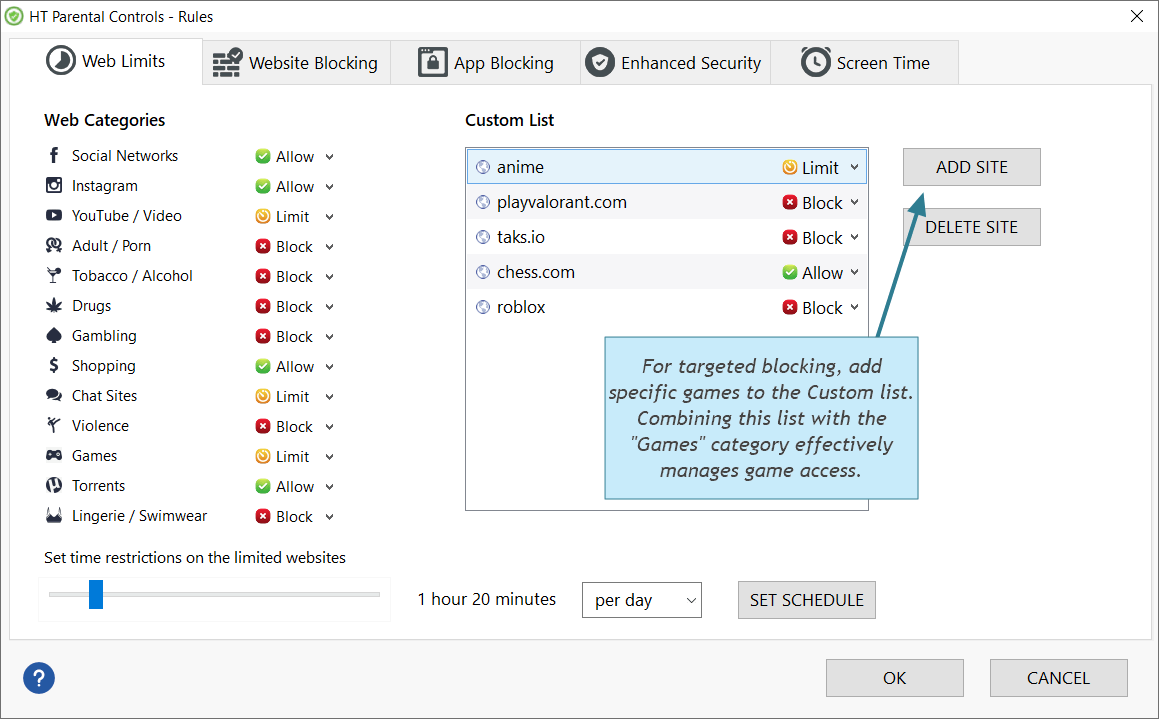
- To block or limit only certain games, add specific game sites to the Custom List. For example, to block Poki, add “poki”.
- For best results, combine the Games category with the Custom List to manage access based on your child’s needs.
Click to enlarge
How to Block App Games (Installed)
By "app games" or installed games, we mean games that are downloaded and installed directly on your computer — unlike browser games, which are played online. These games can also be blocked using our game blocker. Here’s how:
- Download HT Parental Controls and install it on your child’s computer from any account.
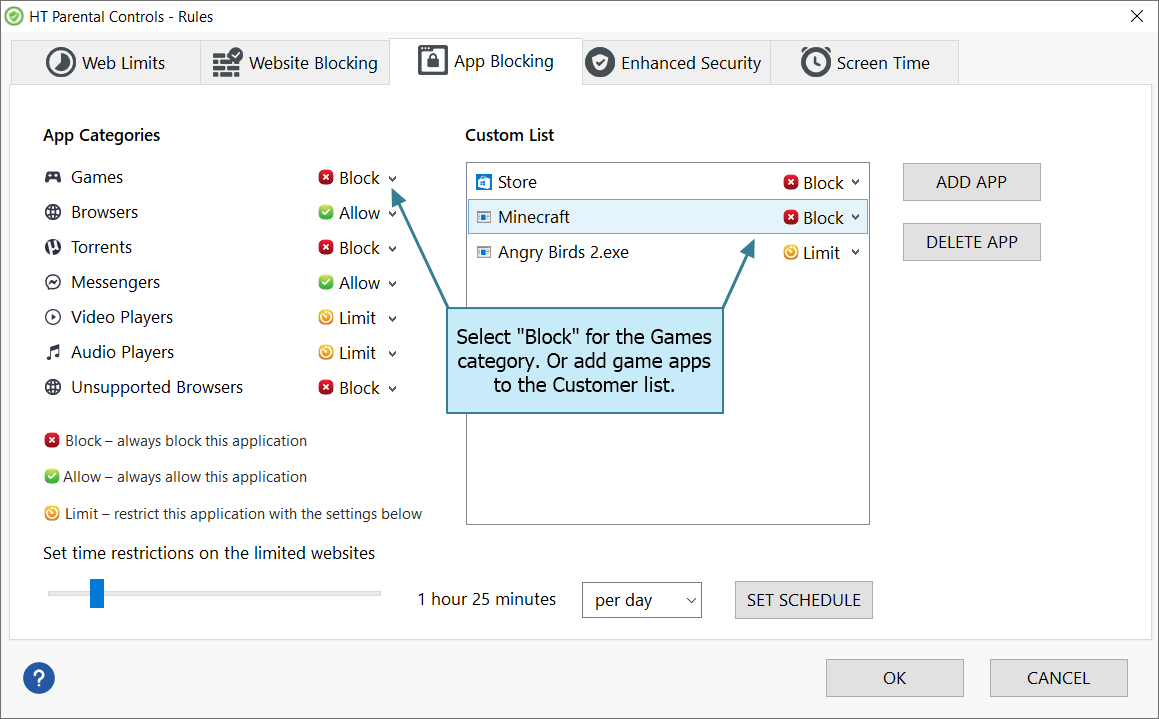
- Open Rules > App Blocking.
- Select Block or Limit for the Games category.
- Alternatively, you can manually add the game apps you wish to block to the list.
- If you choose Limit for certain apps/categories, set up time restrictions and create a schedule, if necessary.
Click to enlarge
How to Block Games Directly from Reports
Blocking games is simple with our parental control software. This intuitive tool shows detailed statistics for all launched apps and visited websites, letting you review activity and block games directly.
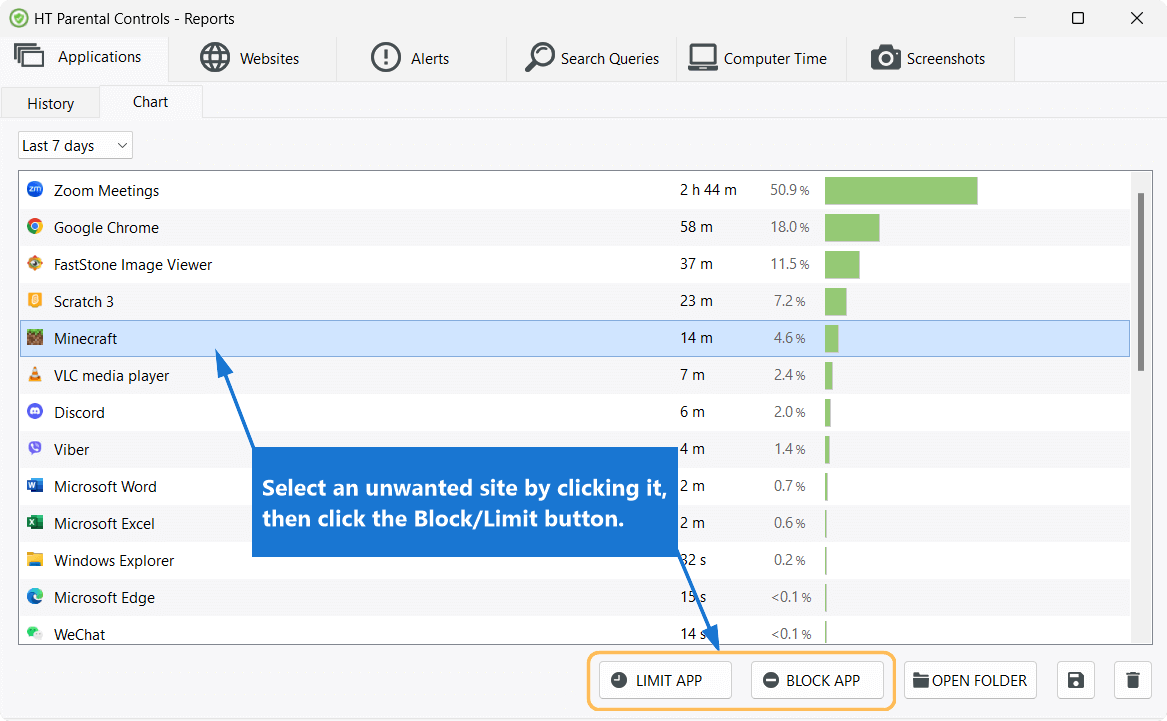
- Go to Reports > Apps (or Reports > Websites).
- Find the game and click once to select it (no details view opens). Then click Block or Limit button.
Click to enlarge
This setup is also suitable for school and university computer labs where administrators need to limit game access during study hours.
FAQ: Blocking Games on a Child's Computer
More Benefits with HT Parental Controls
HT Parental Controls is powerful, easy-to-use parental control software that puts you in charge of computer and internet use—without hassle. What you can do:
Block Games
Regulate Social Media
Manage Screen Time
Block Inappropriate Content
Restrict Access to Approved Sites Only
Monitor Activities
Built to be tamper-resistant against common bypass attempts and simple to set up, HT Parental Controls works with all major browsers: Google Chrome, Microsoft Edge, Internet Explorer, Firefox, Opera, and Brave. Effortlessly block online and offline games, browser games, game apps, and manage the overall computer usage with a few simple clicks.
Get a 14-day free trial—no credit card required.
Last updated: February 18, 2026