How to Block Roblox on PC (Windows 11/10) | Website & App
Learn how to block Roblox on computer (Windows 11/10), set time limits, and schedule access for both the Roblox website and the Roblox app using HT Family Shield.
How to Block Roblox Website (or Set Time Limits)
- Download HT Family Shield and install it on your child’s computer, then create an account.
- Access your parental dashboard at https://family.ht-vector.com from any browser, anywhere, to set rules and view activity reports remotely.
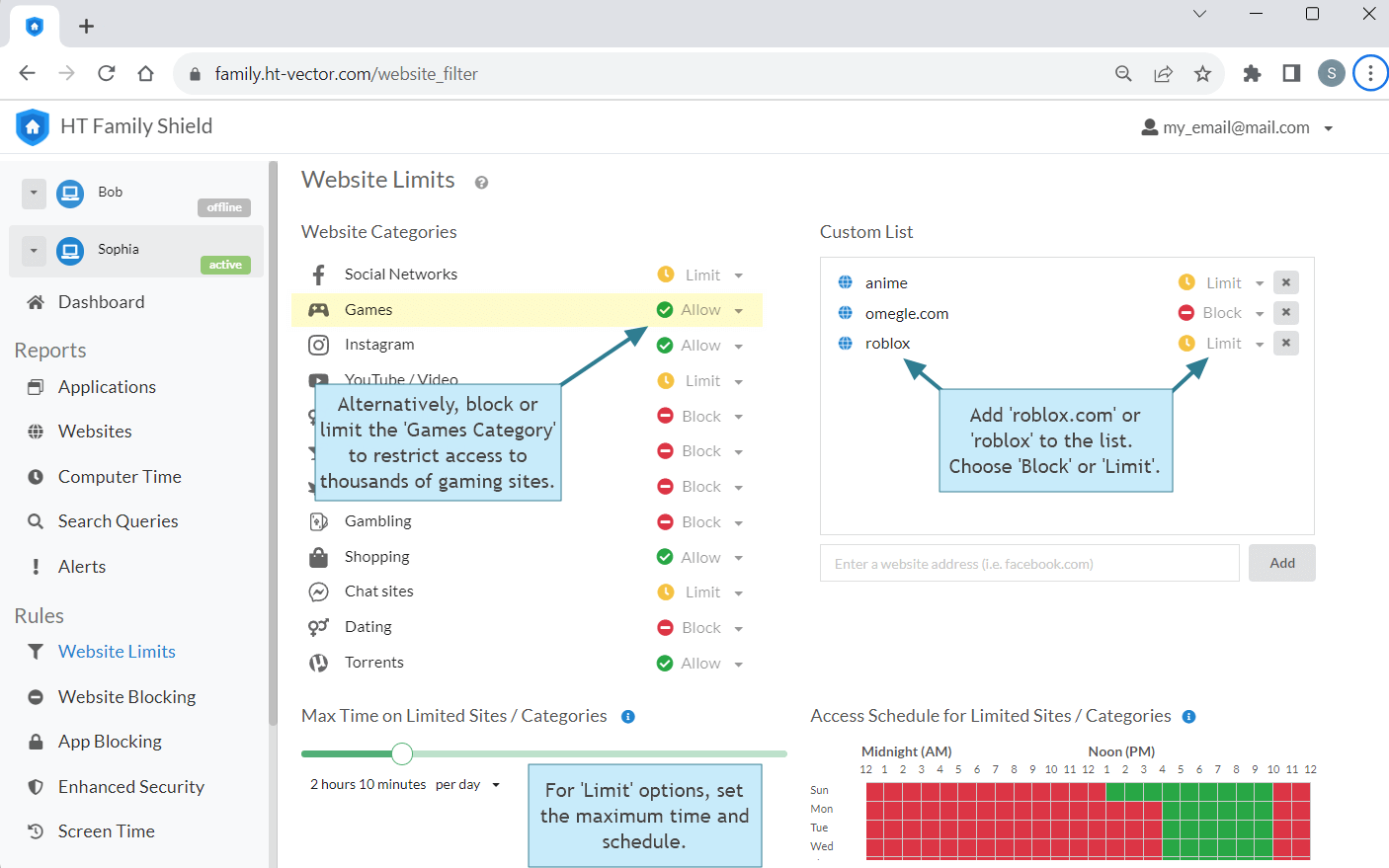
- Navigate to Rules > Website Limits. Add 'roblox.com' or the keyword 'roblox' to the list.
- Choose Block to completely restrict access or select Limit to set the maximum time per hour/day/week, and schedule access for the site.
- Alternatively, you can block or limit the Games Category to restrict access to thousands of gaming sites in just a few clicks.
Click to enlarge
How to Block Roblox App (or Set Time Limits)
Roblox provides both a website and an app for gameplay. HT Family Shield offers solutions to block or set time limits for both. Since the Roblox app can be challenging to locate on a computer, it's simpler to manage the game directly through your Reports.
- If you haven’t already, download and install HT Family Shield on your child’s computer and create an account.
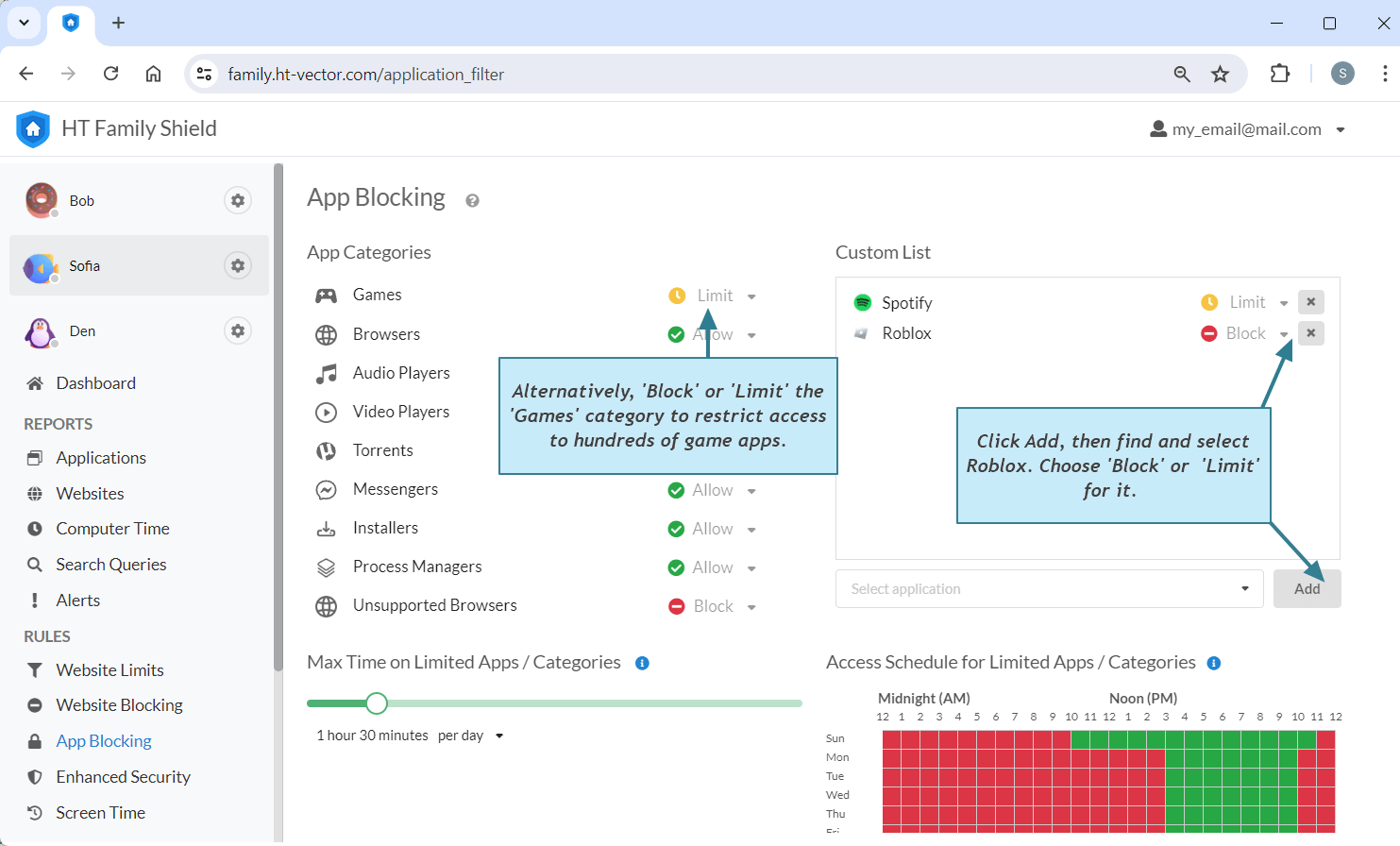
- Go to Rules > App Blocking.
- Click Add, then find and select Roblox.
- Select Block to completely disable the Roblox app, or choose Limit to set time limits and schedules.
- Alternatively, select Block or Limit for the Games category to control similar game apps together.
Click to enlarge
FAQ and Common Concerns
-
Q: How to block Roblox on Chrome?
A: Use a system-wide method so it works in any browser. In HT Family Shield go to Rules > Web Limits and add roblox.com or the keyword roblox. Browser extensions are easy to disable, so avoid relying on them. -
Q: How to block Roblox games?
A: In HT Family Shield open Rules > Web Limits. Paste the exact game URL from the Roblox experience page or add the game name as a keyword, then choose Block or Limit. If the Roblox app can still launch the game, also apply App Blocking for Roblox. -
Q: Can I set time limits for Roblox?
A: Yes. In Web Limits use Limit for the website with daily or hourly caps and a schedule. In App Blocking choose Limit for the Roblox app.
HT Family Shield is your partner in ensuring a safe online environment for your child. It offers a robust suite of features so you can easily block Roblox and any other site and apps, fostering deeper focus, greater accomplishments, and promoting healthy productivity habits in your child.
Last updated: October 13, 2025