Download HT Parental Controls
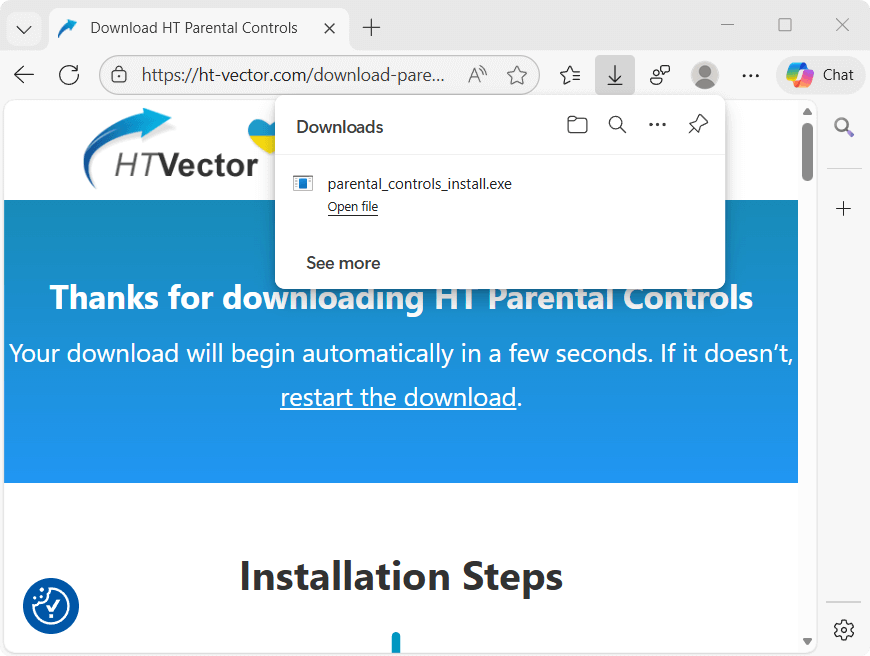
for Windows onlyYour download will begin automatically in a few seconds. If it doesn't, click here.
Installation Steps
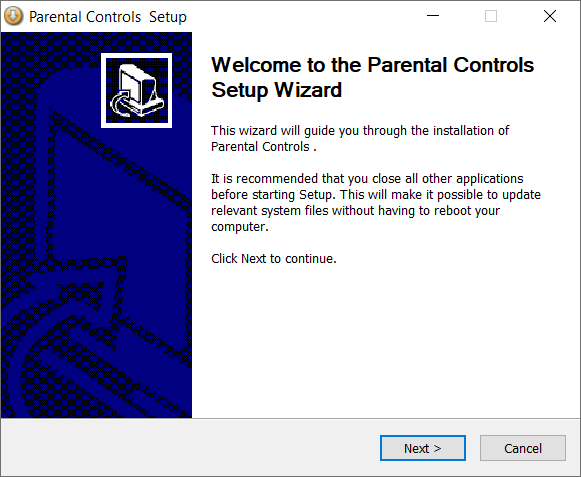
Step 2 – Install
Run the installer, follow the on-screen instructions, and open the app.
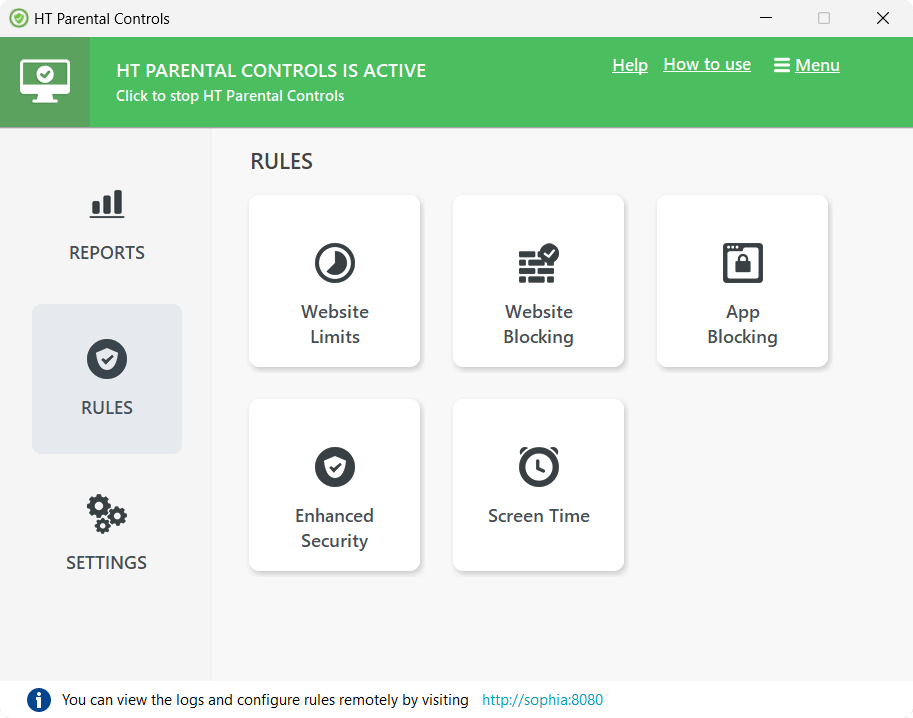
Step 3 – Set up the Rules
Set limits for apps, websites, and screen time.
FAQ
It is designed for your home computers and laptops running Windows (any version from Windows 7 to Windows 11). The software is optimized to run in the background without affecting the performance, ensuring a smooth experience even on entry-level hardware.
Yes! It covers all the popular ones: Chrome, Edge, Firefox, Brave, Tor and Opera. Even if your child is tech-savvy and tries to use "Incognito" mode to hide their history, the program still sees everything and keeps the filters active. Unsupported borwser can be asily blocked with a one click.
We’ve thought of that! If your child downloads a random or obscure browser to try and get around the filters, you can block any unsupported browser with just one click in the settings. This ensures they stay within the safe "fenced" area you’ve created.
Absolutely. You can choose specific keywords that are off-limits. If your child searches for something inappropriate on Google, Bing, or YouTube, the program catches it instantly and blocks the page before they see anything they shouldn’t. Find out how
It’s all about where you want the "remote control" to be:
HT Parental Controls: You manage everything directly on the child’s computer. It’s simple, private, and doesn’t require an online account.
HT Family Shield: This version has an Online Dashboard. It’s for parents who want to check reports or change the rules from their own phone or work computer while the child is at home.
Compare features
HT Parental Controls: You manage everything directly on the child’s computer. It’s simple, private, and doesn’t require an online account.
HT Family Shield: This version has an Online Dashboard. It’s for parents who want to check reports or change the rules from their own phone or work computer while the child is at home.
Compare features
Yes, and it saves so many arguments! You can set a schedule (like no computer after 9 PM) or a daily limit (like 3 hours total). When the time is up, the computer can automatically log off or shut down, giving you peace of mind at night. Read how to do this
You sure can. You can block any game or app completely, or put it on a timer. You might allow educational apps all day but limit heavy gaming to just an hour or two in the evening. Find out how
Yes! Sometimes a list of websites isn’t enough. The program can take automatic screenshots every few minutes. It’s like being able to glance over their shoulder to see who they are chatting with or what they are really doing, even when you aren’t in the room.
HT Parental Controls is for parental and educational use only. Explicit consent is required. By downloading, you agree to our Terms of Use and Privacy Policy