Download HT Work Focus
for Windows onlyYour download will begin automatically in a few seconds. If it doesn't, click here.
Need the MSI installer? Download HT_Work_Focus.msi.
Installation Steps
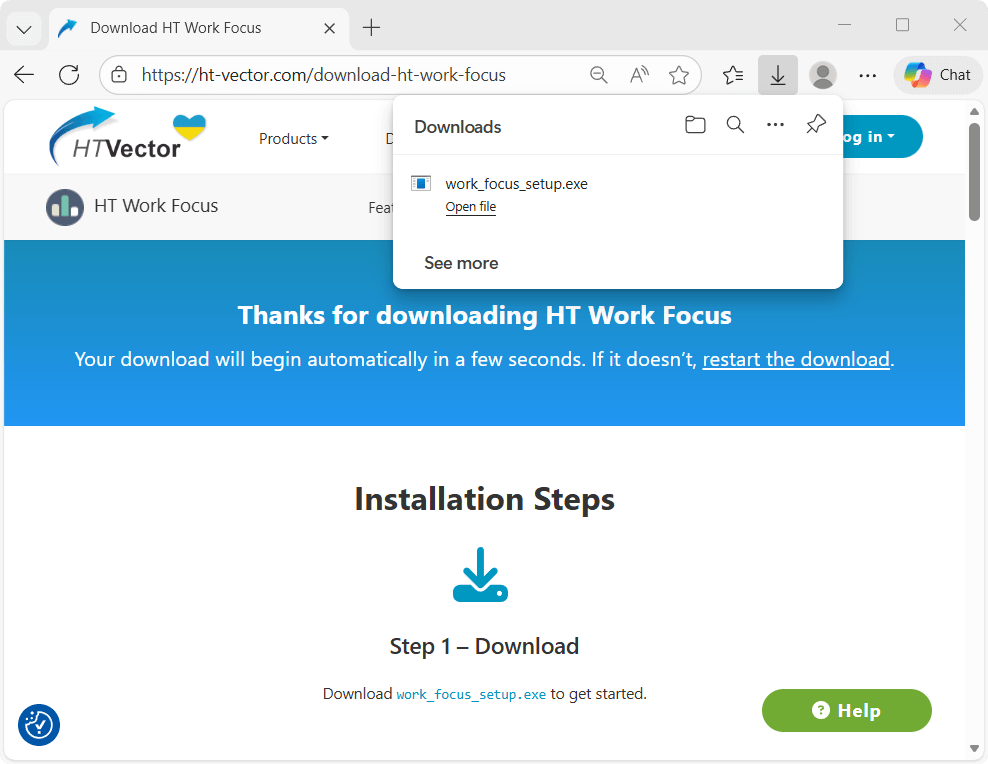
Step 2 – Install
Install HT Work Focus on employee computers, laptops, or Windows-based terminal servers you want to manage.
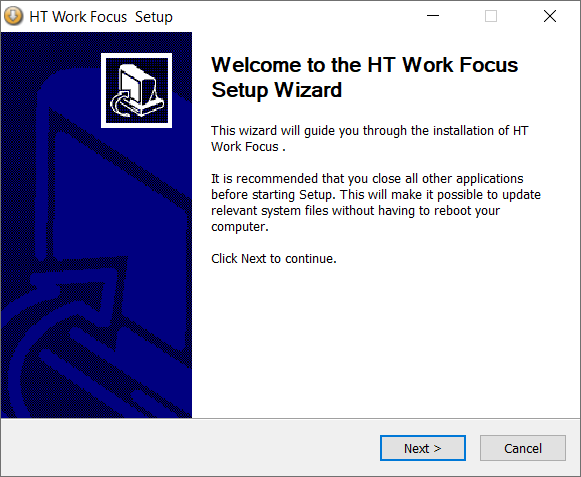
Step 3 – Set up the Rules
Limit distractions and non-work-related activities during working hours to improve focus and productivity.
FAQ
HT Work Focus is built for Windows-based computers and laptops (Windows 11, 10, 8, and 7), as well as Windows Terminal Servers. It is optimized for business environments, meaning it runs silently and efficiently without slowing down workstations or server performance, even with multiple users.
Yes. If the computers are in the same local network, you can access reports and change settings remotely via your web browser. This allows you to manage your office without leaving your desk. Find out how
If your employees work remotely or are spread across different locations (outside of your office LAN), we recommend HT Task Vector. It provides a fully remote online dashboard, allowing you to monitor activity and manage settings from any location via the Internet.
Absolutely. You can set Time Limits and Schedule for non-work apps or websites. This allows employees a set amount of personal time (e.g., 30 minutes for news or social media), after which the software will automatically block those distractions for the rest of the day. Step-by-step guide
Unlike basic tracking tools, HT Work Focus is proactive. It allows you to:
- Block or limit distracting websites (Social Media, Videos, Games, News, Shopping).
- Track "Active" vs. "Idle" time to see if employees are actually working or if the computer is just sitting on.
- Review application and website usage to ensure professional tools are being used more than "time-wasters."
Yes. Under Settings > General Settings > Schedule, you can set the software to work only at specific times. You can choose to apply your schedule to Monitoring, Filtering, or both simultaneously. This ensures the software is active only during work hours and automatically turns off during weekends or breaks to respect employee privacy. Learn how
HT Remote Manager provides a central console to manage all computers at once. Instead of connecting to each PC individually, you can view live activity and update rules for the entire team from one single screen.
You can use the Import and Export feature. Simply set up all your rules, schedules, and filters on one "master" PC, export the configuration to a file, and then import it onto all other computers. This makes large-scale deployment fast and error-free. This option is also available for remote setup. Read how to do this