How to Install HT Parental Controls
Last updated: November 5, 2026
Installing HT Parental Controls takes about 5 minutes. You install it once, on the Windows computer your child uses.
Before You Start
Windows 7–11
Install it on the Windows computer your child uses.
Administrator account
Use your own admin account. You don’t need to switch to your child’s account.
On the computer itself
The program can’t be installed or removed remotely.
Install HT Parental Controls
- Download HT Parental Controls on your child’s computer.
- Open the downloaded file. If Windows asks Do you want to allow this app to make changes to your device?, click Yes.
- In the setup wizard, click Next and follow the steps to the end.
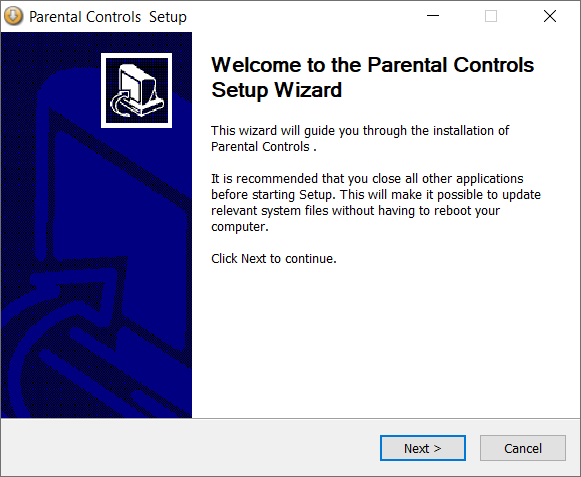
Setup wizard. Click to enlarge.
During installation you can add program shortcuts. They appear only in the account you install from.
What Happens After Installation
Runs in the background
HT Parental Controls starts automatically with Windows.
Nothing is blocked yet
Monitoring starts right away, and you choose the rules.
Tips for Parents
Set a password right away
Your child won’t be able to open the program and change the rules. How to set a password
Turn on Enhanced Security
It closes Task Manager, Windows Settings, Command Prompt and other tools children use to get around the rules. Enhanced Security
Manage it from another device
Turn on Remote Access to see reports and change rules from your phone or laptop on the same network. Remote Access